
How to set up a MapleStory Classic overlay safely (and what to avoid)
- What a MapleStory Classic overlay does
- How an overlay reads the game
- How to set up an overlay on Windows
- How to set up an overlay on Mac
- No download: an overlay in your browser
- MapleStory Classic overlay not showing? Quick fixes
- Streaming with an overlay
- Red flags: overlays and tools to avoid
- Which overlay should you pick?
A MapleStory Classic overlay is a small app that floats on top of the game and reads your screen to tell you things the game doesn't: what a shop listing is really worth, your EXP per hour, the way to a map, when a field boss can spawn. You keep playing as normal; the overlay just adds notes beside what you already see. Here's how one works, how to set it up on Windows or Mac, and the red flags that tell you to stay away from a tool.
What a MapleStory Classic overlay does
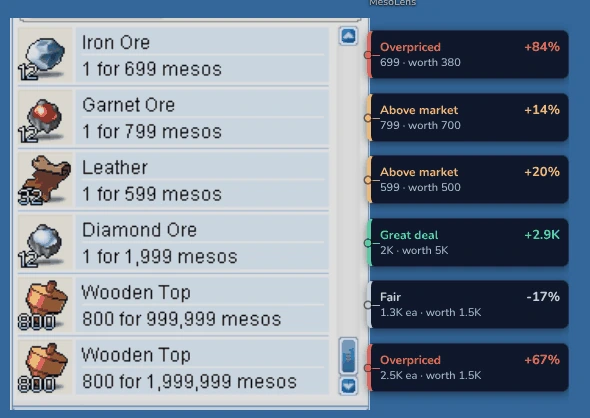
A good overlay answers the questions you'd otherwise alt-tab for. These are the parts players use most in MesoLens, a free overlay made for Classic World:
| Part | What it shows on top of the game |
|---|---|
| Shop badges | A badge beside every listing in a player shop: Great deal, Good deal, Fair, Above market, Overpriced, Check stats or Sold. Equipment is judged by its own stats. |
| Item card | Press Ctrl+Shift+I on any item for its market price, typical range, trend, where it drops and crafting profit. |
| Grind window | Time to your next level, EXP per hour, mesos made, potions used and whether the hour was Meso Positive. |
| Map panel | How good the map is for your level, its monsters and drops, better maps for you, and boss timers by channel. |
| GPS | The way to any map, monster, NPC or quest, portal by portal. |
| Quests | Where you are in each quest, with a button that points you to the next step. |
Each part has its own guide: Free Market price check, EXP tracker options and GPS and map directions.
How an overlay reads the game
An overlay of this kind works like OBS or Discord screen share. You pick the MapleStory window, and the overlay looks at the picture of it. When a shop opens, it reads the item names and prices on screen. When EXP comes in, it reads the numbers. Then it draws its own small windows on top.
That's all it should do. MesoLens:
- only reads the picture on your screen, the same way streaming software does;
- never opens, reads or changes the game's memory or files;
- never injects anything into the game;
- never presses a key or clicks for you. You do all the playing and buying.
The picture stays on your PC and nothing is recorded.
How to set up an overlay on Windows
- Download it from the official site. For MesoLens that's mesolens.app/download. The installer is signed, but because the app is new, Windows can still say "Windows protected your PC" the first time. Click More info, then Run anyway.
- Put the game in Windowed or Borderless mode. Exclusive fullscreen hides every overlay. This one step fixes most "it doesn't show" problems.
- Click Watch my screen and pick the MapleStory window on the Window tab.
- Open your main windows once so the overlay learns your game: Character Stat (with DETAIL), Equipment, each inventory tab, your storage, the Change Channel window, and keep your minimap open. MesoLens ticks each one off in Help > Getting started as it sees them.
After the first time, it finds the MapleStory window again by itself when you start it.
How to set up an overlay on Mac
MesoLens runs on Mac too (Apple chips or Intel, macOS 12 or newer):
- Download the zip from mesolens.app/download, open it and drag MesoLens to Applications.
- Open it. It's signed and checked by Apple, so macOS only asks once whether to open an app from the internet. Click Open.
- Allow MesoLens in System Settings > Privacy & Security > Screen & System Audio Recording, then quit and reopen it.
One difference: on a Mac, Watch my screen watches the whole screen the game is on, not a single window. Everything else works the same.
No download: an overlay in your browser
If you'd rather not install anything, MesoLens in your browser runs in a tab. Share your game window and you get a live grind tracker, a GPS to any map and a price check for any item. It also has Try on for outfits and cash shop items.
MapleStory Classic overlay not showing? Quick fixes
| Problem | Fix |
|---|---|
| Nothing shows over the game | Switch from exclusive fullscreen to Windowed or Borderless. |
| It showed, then vanished | You may have pressed Ctrl+Shift+H (hide all). Press it again. MesoLens also hides when you leave the game and comes back when you return. |
| The panel is gone | Click the round MesoLens button in the bottom-right corner of the game, or press Ctrl+Shift+O. |
| Shops get no badges | Check that Watch my screen is on and watching the MapleStory window. Move your mouse off the shop list so it can see every row. |
| Mac shows nothing | Allow Screen & System Audio Recording, then quit and reopen. |
| Your PC feels slow | Turn on Settings > Grinding > Low resource mode. It looks at the game half as often. |
Still stuck? Help > Report a problem in the panel sends what went wrong with the app's log.
Streaming with an overlay
By default MesoLens hides its windows from streams, recordings and screenshots. To let viewers see the prices and deals, turn on Settings > Streaming > Show MesoLens on my stream. In OBS, use Display Capture: Game Capture and Window Capture only grab the game, not the windows on top of it.
Red flags: overlays and tools to avoid
Not every "helper" is an overlay. Walk away from any tool that:
- reads or changes game memory, or asks you to disable your antivirus for it;
- injects a file into the game;
- plays for you: auto-buys, presses keys, moves your character, loots or uses potions;
- promises you can't get banned. Only Nexon decides how its rules apply, and no tool can promise that.
- comes from a lookalike site. Similar names exist. The real MesoLens is only at mesolens.app.
A screen-reading overlay only tells you things. Every click is still yours.
Which overlay should you pick?
- Want prices, grind tracking and maps in one place? A full overlay like MesoLens covers all of them, free, on Windows and Mac.
- Only want EXP per hour? Any EXP tracker works. Compare them in every EXP tracker option.
- Want the whole list of community tools? See the best MapleStory Classic tools.
More guides: where to train at every level, how to make mesos and Classic World tips.
Questions
What is a MapleStory Classic overlay?
It is a small app whose windows float on top of the game. It reads what is on your screen and adds information next to it: item prices, EXP per hour, the way to a map or a boss timer. You still do all the playing.
Why is my MapleStory Classic overlay not showing?
The most common cause is exclusive fullscreen, which hides every overlay. Switch the game to Windowed or Borderless mode. Also check that the overlay is watching the MapleStory window and that you have not hidden it with its hotkey (Ctrl+Shift+H in MesoLens).
Is there a MapleStory Classic overlay for Mac?
Yes. MesoLens runs on Mac (Apple chips or Intel, macOS 12 or newer). Allow it once in Privacy & Security > Screen & System Audio Recording, then reopen it.
Can I use an overlay without downloading anything?
Yes. MesoLens in your browser gives you a live grind tracker, a GPS to any map and a price check in a browser tab when you share your game window.
Can an overlay get me banned?
Only Nexon decides how its terms apply to third-party tools. Pick an overlay that only reads your screen, like streaming software, and never one that reads game memory, injects code, or presses keys or clicks for you.
Get the free MesoLens overlay
MesoLens is a free overlay for MapleStory Classic World: prices on every Free Market shop, a grind tracker, the map guide and these class guides, right on top of the game. It only reads your screen, like streaming software. Or use it in your browser, no download.